 GAMESLASH
AI pixel characters have messy edges? sprite-gen cleans frames and lets you check motion first
By GameSlash
A practical look at cleaning generated pixel-character outlines, arranging animation frames and previewing loops in sprite-gen, including setup and model limitations.
An AI-generated pixel character may look finished, yet still have green fringe around its outline or jump awkwardly between poses. sprite-gen addresses the less glamorous last mile: cleaning a generated character's background, checking motion frames and assembling files that game software can read.
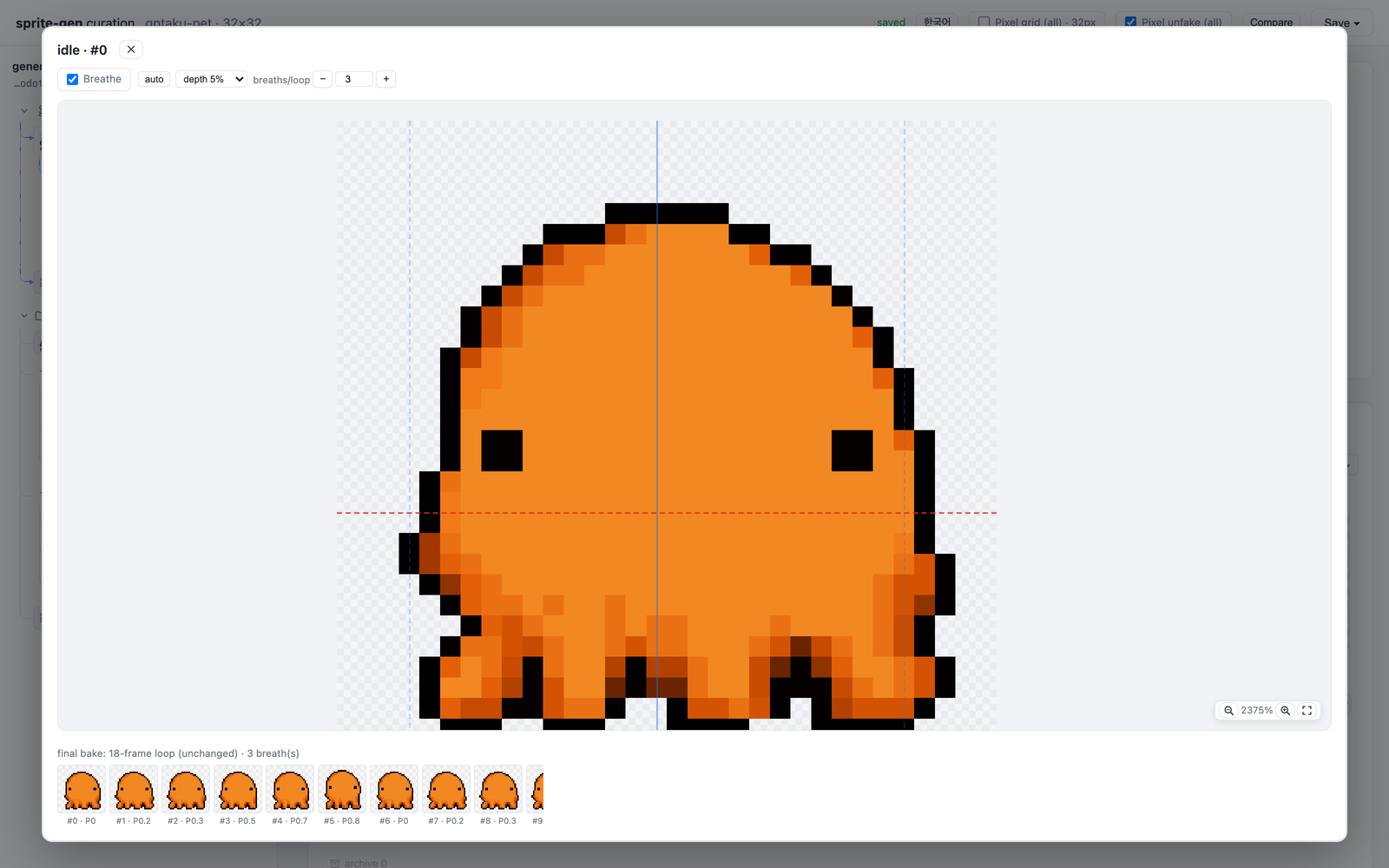
From one character image to frames that can be checked
According to the developer, sprite-gen can start with a base character illustration, generate pose rows, strip a colored background into true transparency, and collect frames into a sprite atlas, meaning one image holding the frames of a walk or attack. The exported manifest describes how to find those frames. The project also supports video-model-based loops as a separate workflow.
The developer includes a chroma-cleanup comparison showing that the pixels at an outline matter. A green halo or incorrectly aligned frame may stand out immediately once a character is placed over a real game background.
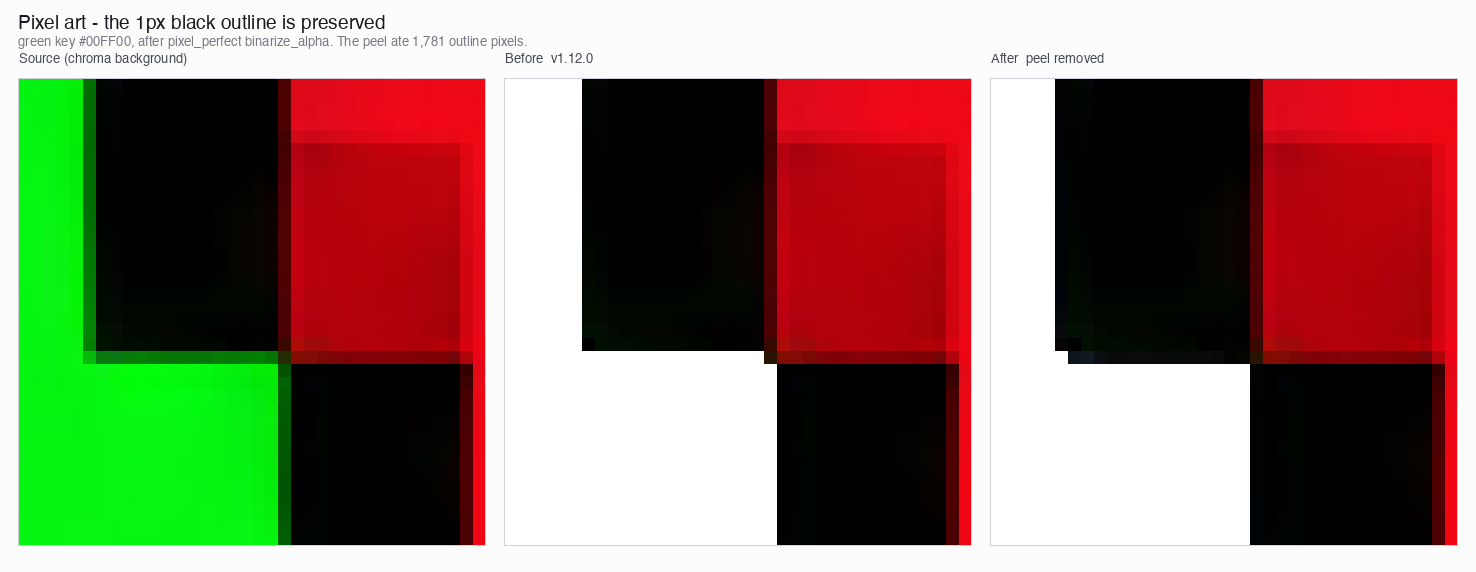
What the built-in frame curator is for
Rather than accept every generated pose, creators can open the visual frame editor, inspect the sequence, reject a bad frame or adjust its placement, then preview the loop before export. This is more useful than only receiving a single flattened result, because timing and consistent placement matter when a player sees the character move.
A realistic beginner workflow
Prepare one clear character drawing; test a short idle animation before attempting a complex walk cycle; inspect each frame's silhouette and transparent edges; preview the animation; then use the export in the game. The README describes external video-model generation and Python tooling, so a newcomer may need some setup and paid model access depending on the workflow.
Source: sprite-gen GitHub and Apache-2.0 license. Screenshots shown are the project's cleanup example and editor UI, not recorded gameplay.