 GAMESLASH
Your AI-made game works on PC but not on phones? Fix touch controls, not just button images
By GameSlash
A hands-on checklist for vibe coders: use free CC0 touch icons, connect real movement and jump actions in Godot, and test two-thumb input.
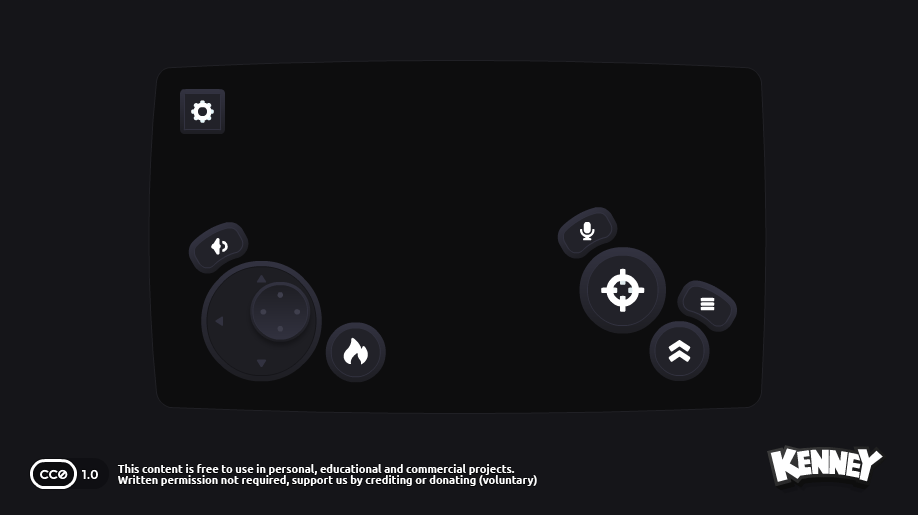
A vibe-coded game can run perfectly with a keyboard yet be almost impossible to play on a phone. The issue is not whether AI can draw a button. A player must be able to move and press an action button at the same time, reach both controls comfortably, and see what each action does.
Kenney's Mobile Controls pack contains 900 CC0-licensed interface assets and was first released in 2025. Its preview is the original creator's artwork, not proof that an AI agent completed mobile gameplay. This is an evergreen workflow using published assets, not an October 2026 product launch. Official Mobile Controls pack.
1. Give AI a defined set of touch buttons and actions
Import the Mobile Controls pack into your game project. Identify a left-hand movement control, right-hand action/jump button, pause and reset. Ask AI to show the mapping between each visual button and each in-game action, rather than simply placing decorative images over the screen.
Suggested prompt: “Our Godot game works using keyboard movement and jump. Add a touchscreen input layout using the existing Kenney Mobile Controls files. Map left/right/jump to the same actions used by the keyboard. Keep touch buttons visible only when appropriate and do not remove the desktop controls.”
2. Make sure simultaneous touches actually work
In Godot, TouchScreenButton is intended for gameplay touch controls and supports simultaneous buttons. That matters when a player holds movement with one thumb and presses jump with the other. Read the official TouchScreenButton docs before asking AI to configure the nodes and input actions.
After AI makes the change, do not stop at looking at the editor. Test on a touchscreen or an appropriate input test environment: move left while jumping, change direction, lift one finger, and pause. Buttons can look right but still fail if the underlying input actions are disconnected.
3. Keep desktop control hints readable too
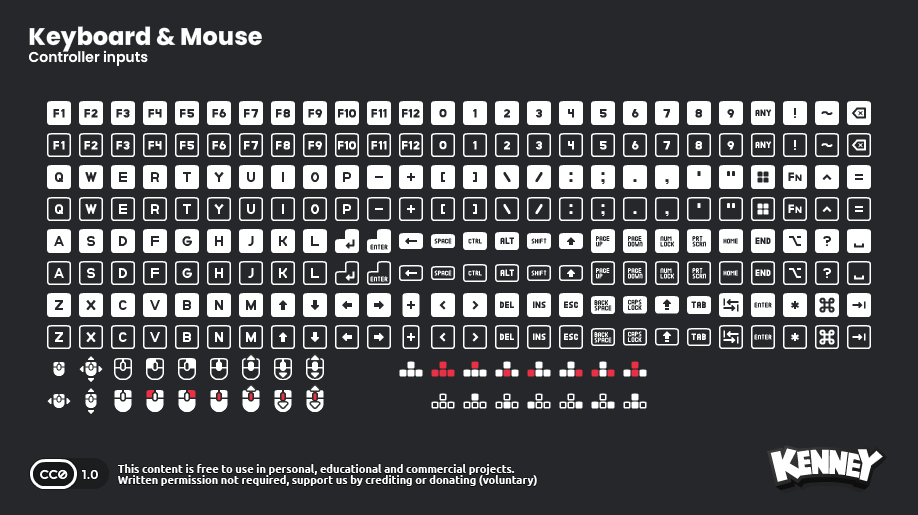
Kenney also distributes Input Prompts—currently a collection of 1,500 CC0 graphics for keyboard, mouse, controllers and touch gestures. Its March 18, 2026 guide recommends short labels and good contrast so players focus on the game. The graphics are visual hints, not automatic input-system code.
Ask AI to display “Space — Jump” on desktop and the relevant action icon on mobile, but only for inputs your game actually supports. Check what happens after key rebinding; a fixed image should not claim the wrong control.
The checklist before shipping a mobile build
Can the player move and jump at once? Are buttons comfortably reachable on a small screen? Do they avoid covering enemies or important information? Does pause work? Do desktop hints disappear or switch appropriately on touch devices? Those tests catch real interaction bugs that a nice-looking screenshot cannot prove.
Sources: Kenney Mobile Controls (900 assets, CC0); Kenney Input Prompts (1,500 icons, CC0); Kenney's 2026 design guide; Godot TouchScreenButton. No independent mobile build was tested for this article.